# Book pages

The aim is to publish a book page up to three months ahead of the book’s publication date.&#x20;

The Publishing team provide all the information we need to create a book page, including:

* Image of the front cover
* Description of the book
* URL linking to an external website where users can buy the book
* Format (hardback, paperback)
* Extent (number of pages)
* ISBN number
* Publication date
* Author’s photo and bio.

The Publishing team sometimes provide review quotes for the book page, too. Up to three quotes can be included on a book page. The page becomes crowded if more than three quotes are added.

Book pages can also include related content like book extracts and author events, displayed via the ‘content list’ component. This related content isn’t usually available for the first iteration of the book page and needs to be added later.

Once published, the book page will automatically appear on the [Books landing page](https://wellcomecollection.org/books), which displays books in chronological order by books’ publication date (not the webpages’ publish date).&#x20;

Books need to be added manually to the [Stories landing page](https://wellcomecollection.org/stories) and to [the homepage](https://wellcomecollection.org/).

### How to create a book page

1. In Prismic, after selecting ‘Create new’, choose ‘Book’ from the list of options.
2. Add the book’s title and subtitle. For example, Disobedient Bodies (title); Reclaim Your Unruly Beauty (subtitle).
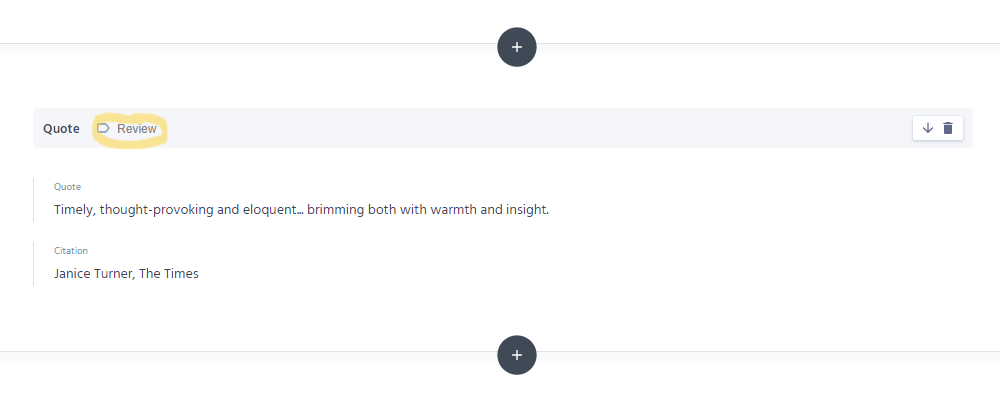
3. If there’s a review quote to include, click the ‘+’ button and select the ‘Quote’ component.
4. Select ‘Review’ from the component’s drop-down menu.
5. Add the quote and where it’s from. For example, Timely, thought-provoking and eloquent.... brimming with warmth and insight. (quote); Janice Turner, The Times (citation).
6. Click the ‘+’ button and select the ‘Text’ component.
7. Add the description of the book. The first sentence/paragraph should be in bold.
8. Add up to two further review quotes if required under the description and using the ‘quote’ component.
9. Add an ‘Order link’. This URL appears on the page as a ‘Buy the book’ button.
10. Leave ‘Price’ blank.
11. Add the ‘Format’, which will either be Hardback or Paperback.
12. Add the ‘Extent’. For example, 160 pages.
13. Add the ISBN number.
14. Input the publish date; leave the time as the default.
15. Select the ‘contributor’ tab and add the author. If the author is a new contributor, you’ll need to create a new ‘Person’ in Prismic.
16. Select the promo tab and add some promo text.&#x20;
17. Add a promo image using the Prismic media library. The front cover must be used for this.  Prismic will automatically resize and style the image to appear correctly.
18. Leave the sections under the ‘Metadata’ and ‘Related content’ tabs blank.
19. The page should be proofed by the copy editor before it is published.

<figure><img src="https://1010814066-files.gitbook.io/~/files/v0/b/gitbook-x-prod.appspot.com/o/spaces%2F18DwJCSD1tjue3OkGDPy%2Fuploads%2FECfoBm0Nig3QFwaSVpr0%2FReview%20quote.png?alt=media&#x26;token=99d58d05-3cb8-4e37-bda7-e5fafb55efad" alt=""><figcaption><p>Adding a review quote to a book page</p></figcaption></figure>

### Adding an extract to a book page

1. Add the extract after the review quotes and text describing the book.
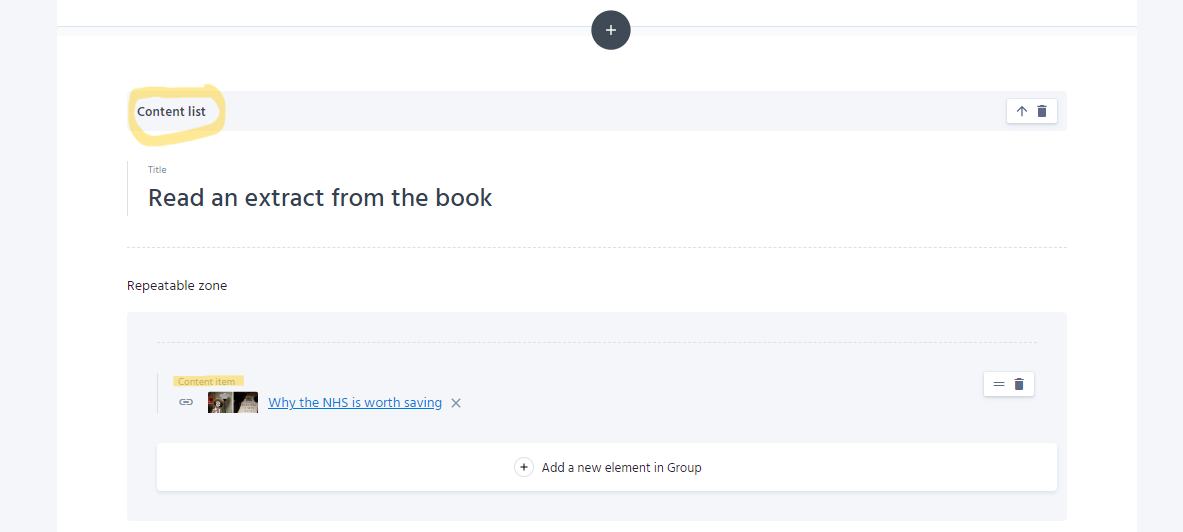
2. Use the ‘+’ button to add a ‘Content list’ component.
3. The title should be: Read an extract from the book
4. Add the book extract as a content item.

<figure><img src="https://1010814066-files.gitbook.io/~/files/v0/b/gitbook-x-prod.appspot.com/o/spaces%2F18DwJCSD1tjue3OkGDPy%2Fuploads%2FSLoz7TRhqWHjzsZJXTAB%2FRead%20an%20extract.png?alt=media&#x26;token=90cb7298-0036-46a3-bc4a-5b7c338fc10e" alt=""><figcaption><p>Adding an extract to a book page using the 'content list' component</p></figcaption></figure>

### Adding an event to a book page

1. Add the event after the review quotes, description and extract.
2. Use the ‘+’ button to add a ‘Content list’ component.
3. The title should be: Join an event with the author
4. Add the event as a content item.

### Linking an extract to a book page

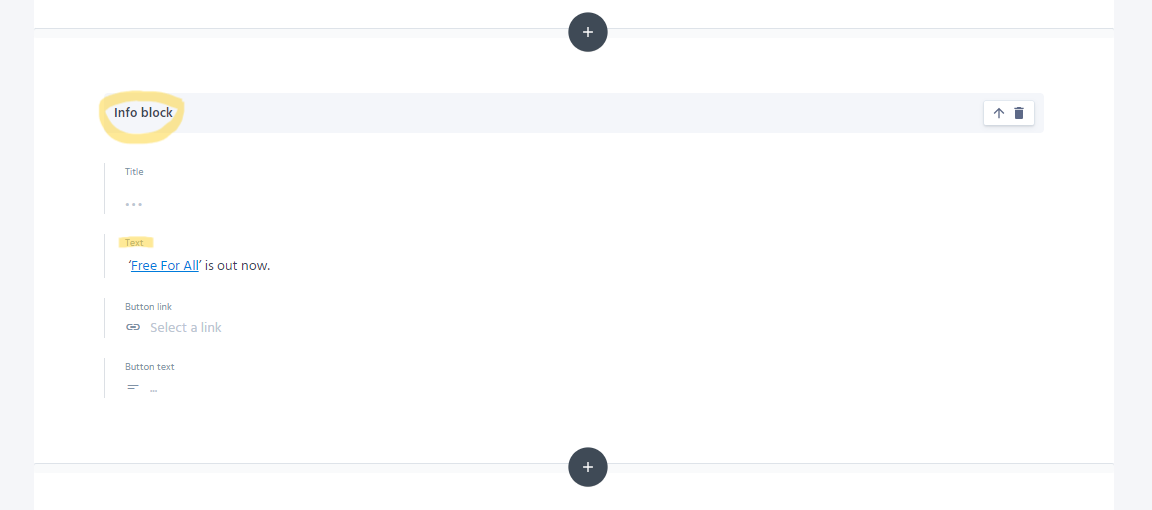
1. Add an ‘info block’ component at the very end of the extract.
2. The text should be: ‘XXXXX’ is out now. For example, ‘Free For All’ is out now.
3. Link the book title to the book page. Select ‘Link to a document’ rather than ‘Link to the web’.
4. Leave the ‘title’, ‘button link’ and ‘button text’ blank.

<figure><img src="https://1010814066-files.gitbook.io/~/files/v0/b/gitbook-x-prod.appspot.com/o/spaces%2F18DwJCSD1tjue3OkGDPy%2Fuploads%2FCVNHDgBB2cm78NpsPIGW%2FLinking%20an%20extract%20to%20a%20book%20page.png?alt=media&#x26;token=d0f12945-0a33-4003-b20b-e5bc1feabc11" alt=""><figcaption><p>Linking an extract to its related book page</p></figcaption></figure>

### Adding a book to the homepage

A book or selection of books often feature in the editable ‘In focus’ section of [the homepage](https://wellcomecollection.org/).&#x20;

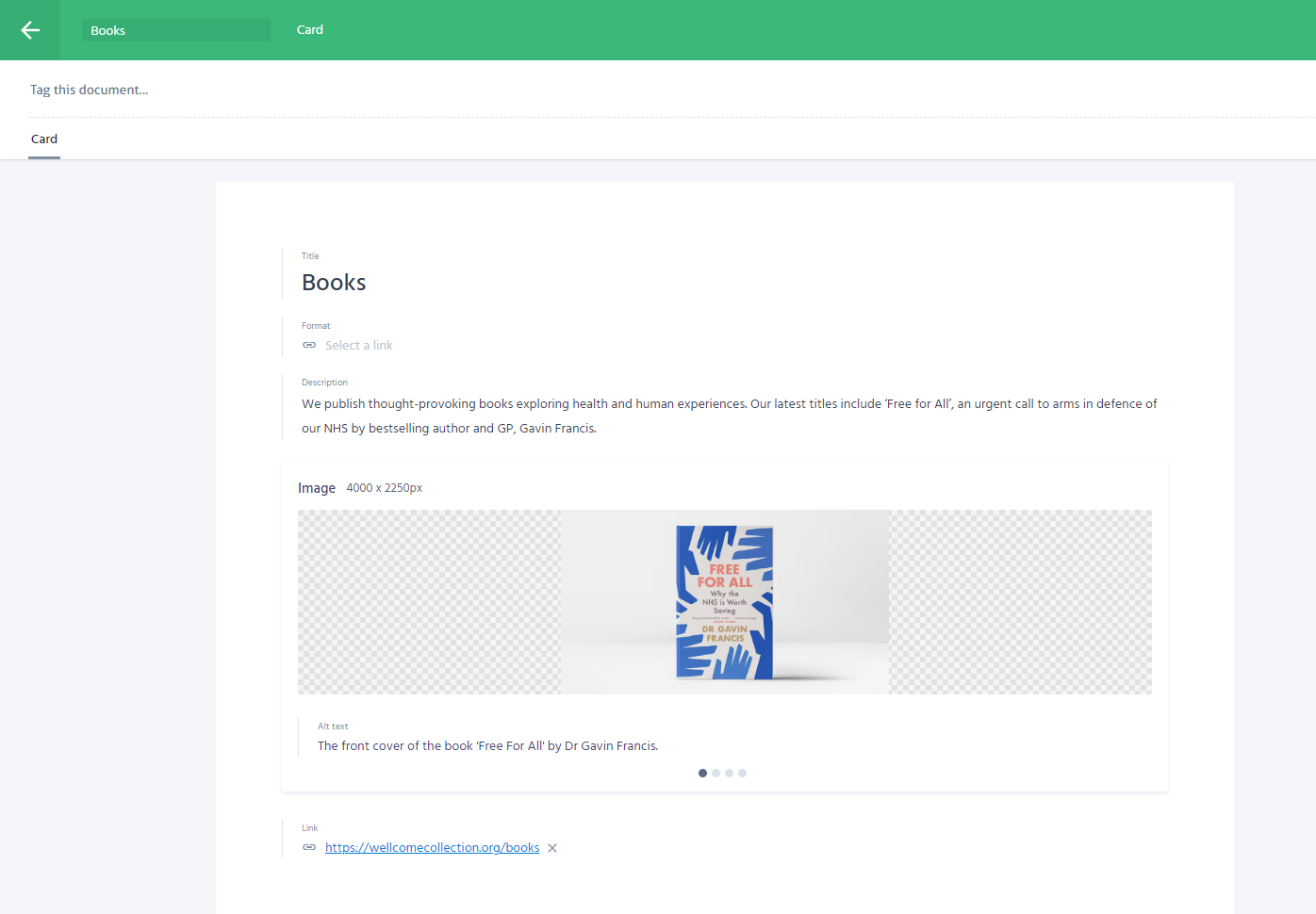
Books must be manually added to the homepage as the ‘Card’ content type. A 16:9 image of the book(s) needs to be specially created.

There is an existing Books card that can be updated or a new one could be created from scratch if needed. (After selecting ‘Create new’ in Prismic, choose ‘Card’ from the list of options.)

The Card needs a title, description, 16:9 image, and link.

<figure><img src="https://1010814066-files.gitbook.io/~/files/v0/b/gitbook-x-prod.appspot.com/o/spaces%2F18DwJCSD1tjue3OkGDPy%2Fuploads%2Fy1046BcX5x4DNQBv0WC8%2FCard.png?alt=media&#x26;token=f2c1c2ab-2cd8-41d1-a0bf-7c6a4bb01a06" alt=""><figcaption><p>Creating or updating a Books card for the In focus section of the homepage</p></figcaption></figure>

See [Managing content on the wellcomecollection.org homepage](https://docs.wellcomecollection.org/functional-content-style-guide/~/changes/InBvbcfYvL8I0201DS2O/homepage) for more info about adding highlighted content.

### Adding a book to the Stories landing page
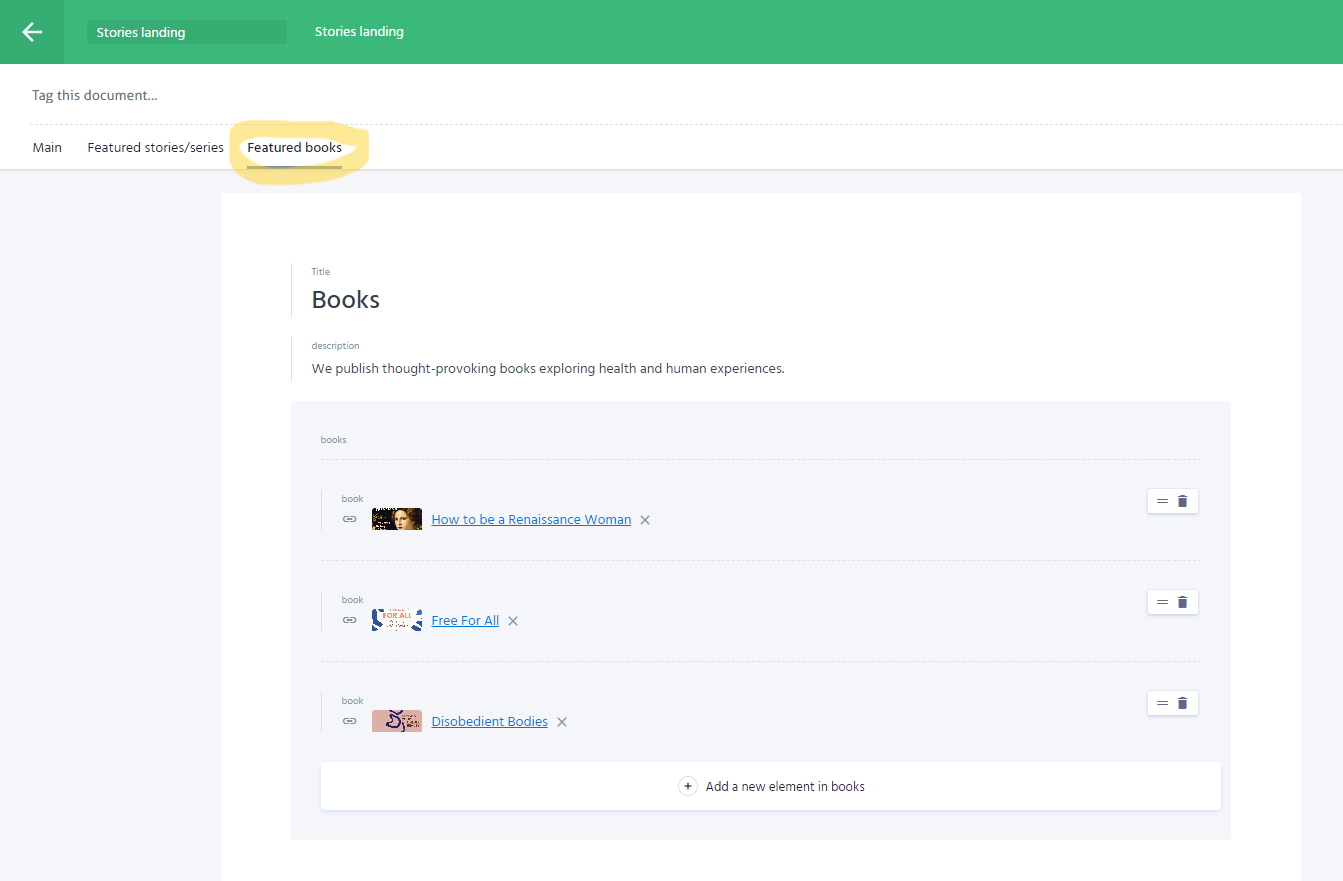
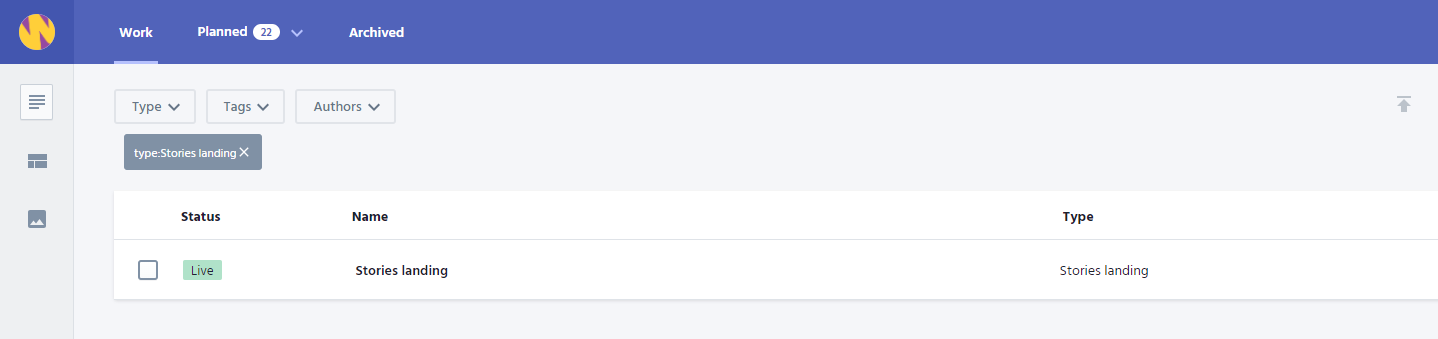
Three books can feature at any one time on the Stories landing page. These need to be added manually in Prismic.

<figure><img src="https://1010814066-files.gitbook.io/~/files/v0/b/gitbook-x-prod.appspot.com/o/spaces%2F18DwJCSD1tjue3OkGDPy%2Fuploads%2FSLl7so1JeQ0A5ERgiUES%2FStories%20landing%20page.png?alt=media&#x26;token=5886bc72-1a59-4495-be84-5efaee683e04" alt=""><figcaption><p>Adding a book to the Stories landing page</p></figcaption></figure>

Select the 'Featured book' tab within the backend of the Stories landing page in Prismic.

<figure><img src="https://1010814066-files.gitbook.io/~/files/v0/b/gitbook-x-prod.appspot.com/o/spaces%2F18DwJCSD1tjue3OkGDPy%2Fuploads%2FlZiLOOp1FNm1tF1bNk0b%2FBooks%20on%20Stories%20landing%20page.png?alt=media&#x26;token=21df6a1c-aacd-49b0-a5e6-56ad629f8882" alt=""><figcaption><p>How to add featured books to the Stories landing page</p></figcaption></figure>

You can add, remove and reorder books here.&#x20;

As a rule, the three most recently published books are the featured ones. Sometimes the Publishing team will specifically request that other books feature here.